 Skip to content

In certain regions, Amazon Firestick does not permit direct installation of IPTV apps from the Amazon App Store.
However, you can still access these players by using the Downloader app. To do this, enable installation from unknown sources in your Firestick settings, install Downloader, enter the IPTV player downloader code/link, and complete the setup. This alternative method ensures reliable IPTV access even when official store restrictions are in place.
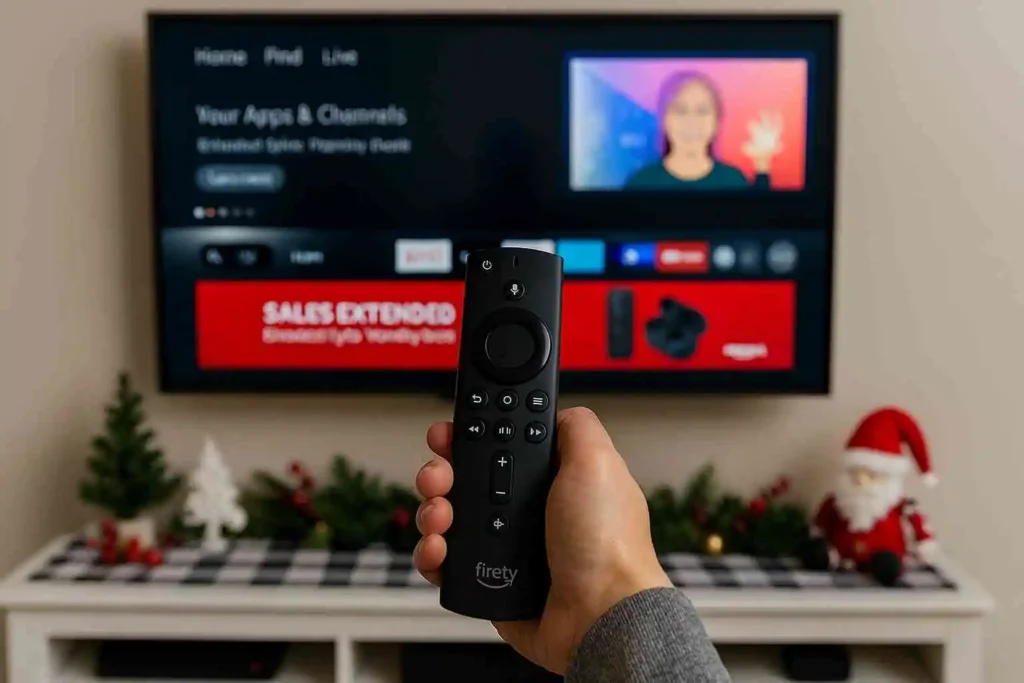
1: Enable Apps from Unknown Sources
- Turn on your Firestick and go to the Home Screen.
- Navigate to the Settings menu (gear icon on the far right).
- Scroll down and select My Fire TV (sometimes called Device or System).
- Choose Developer Options.
- If you don’t see it, go to About → Fire TV Stick and click on it 7 times to unlock Developer Options (similar to Android phones).
- Inside Developer Options, turn on:
- ADB Debugging (optional, for advanced use).
- Apps from Unknown Sources → switch to ON.
- Confirm the warning message by selecting Turn On.
This allows you to install applications outside of the Amazon App Store.
2: Install the Downloader App

- Return to the Firestick home screen.
- Go to the Search icon (magnifying glass).
- Type Downloader.
- Select the Downloader app from the results and click Download/Install.
- This app lets you download APK files directly onto your Firestick.
3: Download an IPTV Player
Experience the ultimate entertainment with top‑tier IPTV players — your go‑to apps for streaming all your favorite content seamlessly.
- Open the Downloader app on your Firestick.
- In the URL field, enter the download code for one of the following IPTV players :– HotPlayer app : 395800– IBO Player Pro : 923441– SmartOne IPTV : Can be installed directly from the official Amazon Appstore.
- Click Go to start the download.
- The APK file will begin downloading automatically
- Once downloaded, select Install to add the player to your Firestick.
HotPlayer app setup (Free to use for the first 30 days)
1. Open the App & Get Your MAC Address
- Launch the Hotplayer app on your device.
- On the main screen, note down the MAC address displayed (this is unique to your device).
2. Visit the Official Hotplayer Website
- On your phone or computer, go to: https://hotplayer.app/upload.

3. Enter Your Details
- In the upload form, enter:
- MAC Address (from your app screen) and press NEXT.

- M3U Playlist URL (the link provided by us).
When copying and pasting, make sure the M3U URL starts with http:// and not https:// because it automatically changes otherwise.
- Playliste name : Australia-IPTV
4. Save
- Click Save
- Restart the Hotplayer app on your TV.
- Your channels and VOD library should now appear automatically.
For App activation, please review the Hotplayer’s pricing and follow their activation steps here
ibopro player setup (Free to use for the first 7 days)
1 : Collect Device Credentials:
- Open the app on your TV. Instead of a single MAC address, these apps typically display two important pieces of information: a Mac address and a Device Key. Copy these exactly as shown
2 : Log In to the Web Portal:
- On your computer or smartphone, go to the official Ibopro player portal here.
- Enter your TV’s Mac address and Device Key to log in .
3 : Add Your IPTV Playlist:

- Once logged into the portal, look for the option to “Add Playlist.” You can now enter your subscription M3U Playlist URL: Simply paste the playlist link provided by your IPTV provider.
When copying and pasting, make sure the M3U URL starts with http:// and not https:// because it automatically changes otherwise.
4 : Start Streaming
- Restart the app on your TV.
- Your channels and VOD library should now appear automatically.
For App activation, please review the SmartOne’s pricing and follow their activation steps here
SmartOne IPTV setup (Free to use for the first 15 days)
1 : Upload your playlist
-
- Launch the SmartOne IPTV app on your device.
- On the main screen, note down the MAC Address (unique to your device)
2 : Upload Your Playlist Online:
On your phone or computer, go to the SmartOne IPTV playlist upload page here.

- Choose M3U Playlist
- Enter your TV’s MAC address,
- Give your playlist a name,
- Paste the M3U URL provided by your IPTV service.
- Complete any security check and click “Add Playlist”
When copying and pasting, make sure the M3U URL starts with http:// and not https:// because it automatically changes otherwise.
- Once uploaded, your channels and movies will appear in the app.
- You can organize playlists and favorites directly from the app interface.
For App activation, please review the SmartOne’s pricing and follow their activation steps here
⚠️ Important Notes
- Always install IPTV Players using the official APK from trusted sources. The most recommended method is through the Downloader app
- Ensure your Firestick is connected to a stable internet connection (minimum 20 Mbps recommended).
- Australia‑IPTV provides login credentials only, the app itself must be installed separately.
- If you face issues, contact Australia‑IPTV Support to confirm compatibility and get troubleshooting help.
For your security, always avoid third‑party or unofficial websites when downloading IPTV applications. These sources may provide modified or unsafe files that can harm your device or compromise your data. We strongly recommend using only trusted platforms such as the official app stores (Samsung Smart Hub, LG Content Store, Google Play Store) or the Downloader app on Firestick to ensure you are installing the correct and safe version of the IPTV players.
